

You can add a clickable website to your TikTok bio once your personal account has at least 1,000 followers or your business has completed TikTok’s verification process. Open Profile, choose Edit profile, then add your destination beside Links or Website.
Switching to a Business account alone does not guarantee the website field will appear. The account you choose also changes which music you can use, so check the tradeoff before changing it.
Check whether your TikTok account qualifies
TikTok’s profile-link guidance gives two routes to a website link: an account with at least 1,000 followers, or a registered business.
Its newer account-entitlement documentation calls the second option a Verified Business Account, previously known as a Registered Business Account. That newer wording matters.
| Personal accountFor individual creators and their usual content | Verified businessFor a real business approved by TikTok | |
|---|---|---|
| Website link | Available once the account qualifies1,000 followers | Available after business verificationVerified access |
| Business documents | Keep your personal accountNot needed | Provide real business credentialsRequired |
| Music access | Access personal and commercial soundsBroader selection | Use the Commercial Music LibraryCommercial only |
| Best fit | People who need their usual soundsCreators | Eligible businesses with proper documentsBusinesses |
TikTok’s entitlement matrix says an account with Advanced Access may be able to edit a bio link without being allowed to display that business profile publicly. The verified tier unlocks public display. Seeing a Business label or an editable field does not prove the link is visible to visitors.
There is another real cost. TikTok’s Commercial Music Library guidance says Business accounts only see commercial sounds when adding music, while personal accounts see the broader sound selection. If trending audio is central to your work, switching account types for a link may be the wrong trade.
Verify a real business if that route fits
Choose Business verification when you actually operate an eligible business and can supply legitimate documents. It is separate from TikTok’s public blue-check badge.
TikTok’s verification instructions describe the following route:
- Open your TikTok Profile and tap the menu.
- Choose Settings and privacy, then Account.
- Open Business verification and review its terms.
- Enter the correct country or region and business details.
- Upload your business document, then enter the legal name and licence information exactly as shown.
- Complete the identity check and submit the application.
TikTok says verification is for users aged at least 18, requires a valid business licence for the relevant region, and typically takes 1 to 5 business days. Required documents and eligibility vary. Its business-verification overview lists supported markets and notes that features can depend on the account.
If you do not have a legitimate business, do not invent one to unlock a link. Keep the account type that fits your work and use the follower route instead.
If you have fewer than 1,000 followers
A personal account below the threshold does not have a hidden setting that turns on the website field. A third-party link-in-bio page cannot override TikTok’s rules either.
You still have a few honest options:
- Verify an actual business if you qualify and accept the account and music tradeoffs.
- Add a short address as bio text so someone can type it manually. It will remain plain text, not a clickable link.
- Connect another supported social account when TikTok offers that option in your region. A connected Instagram or YouTube profile is different from a website field.
- Make the destination easy to find by using the same memorable name across your TikTok profile, other social accounts, and page.
- Prepare the page now so you can add its URL immediately when your account becomes eligible.
Avoid buying followers, submitting false documents, or paying someone promising an eligibility bypass.
Add the website link to your TikTok profile
Once your account qualifies, TikTok documents the setup inside its mobile app :
- Open TikTok and tap Profile.
- Tap Edit profile.
- Find Links, Website, or Add your website. Labels can vary.
- Choose the website option and paste the complete address, including
https://. - Save the change, return to your public profile, and tap the link.
Open the saved address from your public profile and confirm the actual destination appears. Check that the first screen loads on a phone and complete the signup, enquiry, download, or booking a visitor is meant to finish.
The Bio description and the Website field are different. Typing reroute.bio/studio into the description may help someone remember the address, but it does not create a tappable website link.
TikTok can also link supported social accounts such as Instagram or YouTube through the profile editor. Those profile connections have their own availability and do not replace a website destination. For the other platform, the guide to adding a link to your Instagram bio covers Instagram’s current setup.
Choose the destination before you share it
The right TikTok bio link depends on what someone should be able to do next.
Use a direct destination when the same action suits almost every visitor: book one service, open one current product, or sign up for one workshop. If the destination already explains the offer and works well on a phone, another page may add an unnecessary step.
Use a focused link-in-bio page when visitors need identity, context, a Form, or a few useful alternatives. Your most important action should appear early, with supporting choices beneath it.
Free resource
Give them the promised guide
Put the guide and a short email Form first. Keep recent work underneath.
Video prompt: Get the lighting checklist in my bio.
Check: Completed Form Response
Upcoming event
Fill a workshop waitlist
Explain who the workshop is for, then show the signup before older events.
Video prompt: Join the next ceramics workshop through my bio.
Check: New signup
Independent services
Book the right project
Show one relevant example and a clear enquiry or booking action.
Video prompt: September project enquiries are open in my bio.
Check: Completed enquiry or confirmed booking
Current release
Open the exact product
Send visitors to the item shown in the video, not a general shop homepage.
Video prompt: Find this print through the first link in my bio.
Check: Product visit or completed order
If you use  Reroute, start with one recognisable page, add the primary Block, and copy its stable
 reroute.bio address. A Link Block can open your booking page or shop. A Form can collect an enquiry or signup without sending the visitor through another general homepage.
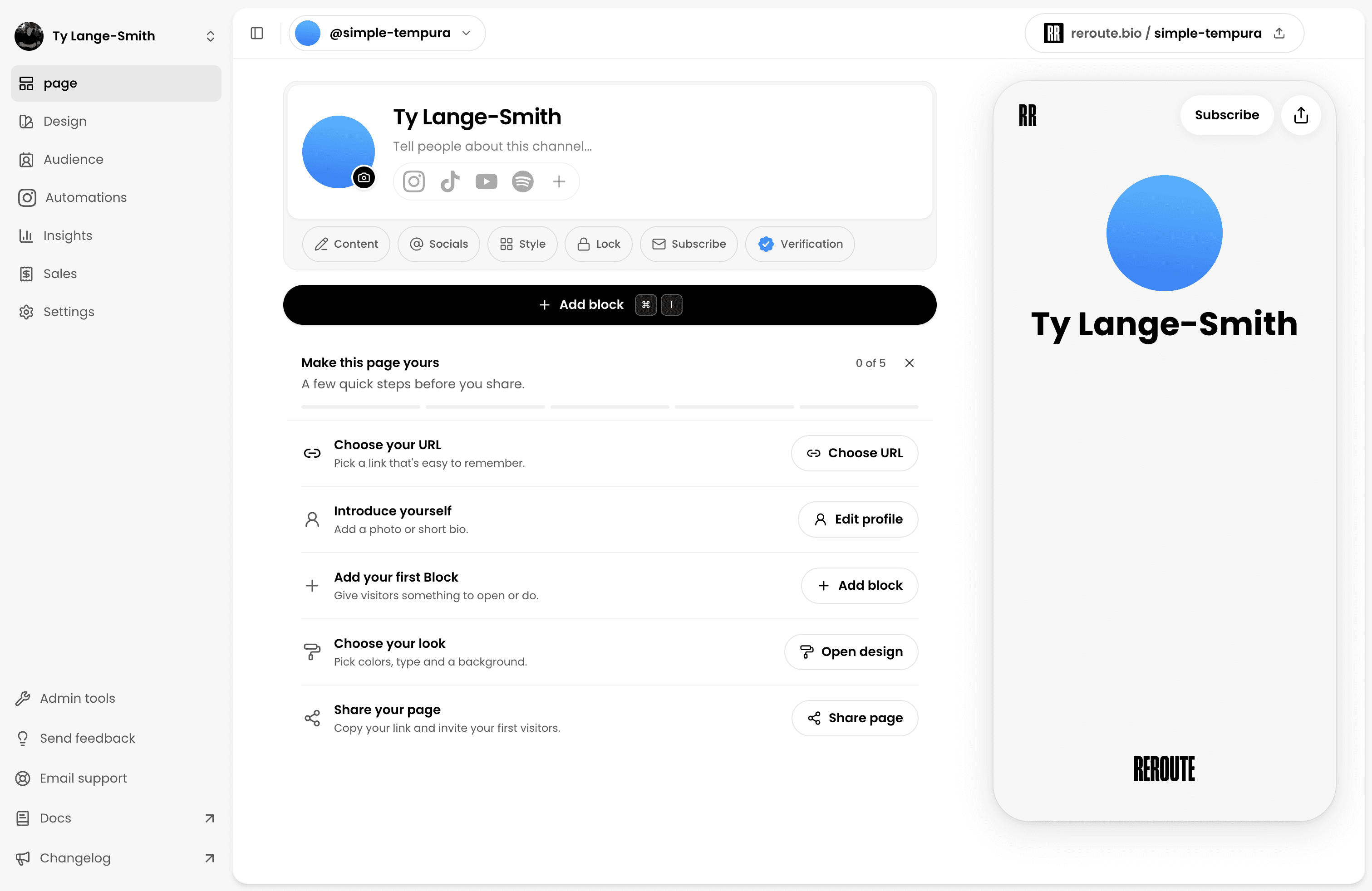
The complete page setup guide covers the public URL, profile, Block order, design, and visitor test. The broader link-in-bio planning guide helps when you need to decide which action deserves the first screen.
Give people a specific reason to tap
“Link in bio” tells someone where to look. The words around it should tell them what they will get.
Keep the video, profile, and first page action aligned:
| Video prompt | Bio line | First page action |
|---|---|---|
| Get the 12-point lighting checklist from my bio. | Free lighting checklist below. | Get the checklist |
| The next ceramics workshop opens this Friday. | Join the workshop waiting list. | Join the workshop list |
| I’m taking 2 new branding projects in September. | September project enquiries. | Ask about a project |
| This is the exact brush pack used in today’s tutorial. | Find the brush pack below. | View the brush pack |
Name the action itself. W3C accessibility guidance recommends link text that describes its purpose. “Get the checklist” gives a visitor more useful information than “Click here”.
Then check the first screen on a phone. Google’s page-experience guidance asks whether a page displays well on mobile, keeps its main content clear, and avoids interruptions. Apply the same practical check inside TikTok’s browser.
Follow the visitor beyond the TikTok tap
A TikTok bio link is only the first step. Each system in the route answers a different question.
TikTok interest
A video or profile gives someone a reason to continue.
Page visit
The destination opens and records an anonymous visit.
Page action
The visitor opens a Block or submits a Form.
Known contact
An email creates a Contact only when someone shares it.
Reroute Insights shows
Visitors, Block clicks, Responses, and New contacts. Acquisition
includes Channels, Referrers, and Campaigns. Engagement shows the
Blocks and Forms people actually choose.
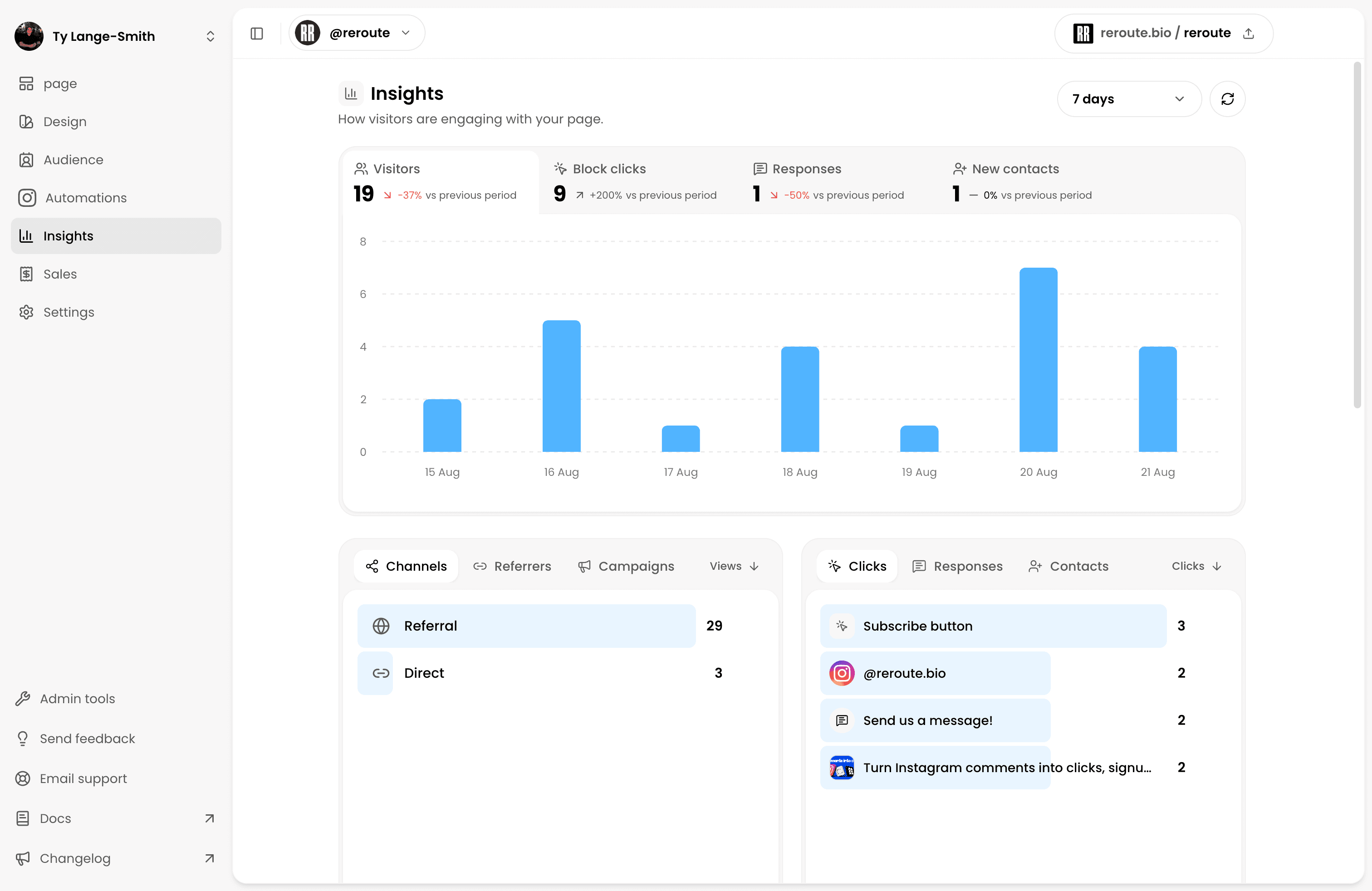
TikTok visits can appear through a recognised referrer or campaign source. Some browser visits arrive without reliable referrer information, so a campaign-tagged profile URL can make the intended route clearer.
Google documents the usual source, medium, and campaign fields . A TikTok profile link might look like this:
https://reroute.bio/studio?utm_source=tiktok&utm_medium=bio&utm_campaign=workshop_tiktok
Give Instagram a different source and campaign when you share the same page there:
https://reroute.bio/studio?utm_source=instagram&utm_medium=bio&utm_campaign=workshop_instagram
Reroute reads all 3 parameters and compares named entries under Campaigns. Use distinct utm_campaign values when you want separate campaign rows. Changing only utm_medium does not create its own report breakdown.
Free includes the full last-7-days Insights report and up to 5 rows per breakdown. Creator adds longer history, complete lists, and filters. Response capture is unlimited; Free lets you manage the newest 10 Responses, while Creator unlocks the full history.
A click does not reveal someone’s TikTok username. A Contact exists when the visitor chooses to submit an email, and permission to receive future marketing is a separate decision. The guide to collecting Responses and building your Audience explains those boundaries.
If the route ends on another booking service or checkout, that external service is the source of truth for the completed booking or purchase.
Fix a TikTok bio link that is missing or ineffective
Start with the earliest point that is not working.
| Problem | Check first |
|---|---|
| Website does not appear on your profile | Confirm you have 1,000 followers or a properly verified Business account. |
| You switched to Business but see no link | Check Business verification. The account-type toggle alone may not unlock display. |
| The address appears but cannot be tapped | Add it through Links or Website, not the plain-text Bio field. |
| The saved address opens the wrong page | Check the complete https:// address, redirects, and the destination on your phone. |
| You cannot edit your profile | Check your account standing and any profile-editing restrictions. |
| Visitors arrive but do not choose a Block | Move the promised action higher and remove unrelated choices. |
| People click but do not submit the Form | Explain the benefit, reduce unnecessary fields, and complete a real submission test. |
| A booking or sale never appears | Check the scheduler or checkout that actually records the completed outcome. |
TikTok’s account-status guidance shows where to check Account check inside TikTok Studio or the Safety Center. Profile restrictions can prevent edits even when another account requirement is satisfied.
When the issue is destination behaviour rather than TikTok eligibility, compare the promise in your video with the first thing a visitor sees. The deeper Instagram bio-link measurement guide also explains anonymous visits, campaign attribution, and how to diagnose the stage where people stop.
Frequently asked questions
Build the page your next TikTok visitor needs
Check your account eligibility, choose the route that fits your work, and make the first action match the video that earned someone’s attention. Then open the page as a visitor and complete that action yourself.
Build your page