

Add a link to your Instagram bio
The current setup takes three short steps.
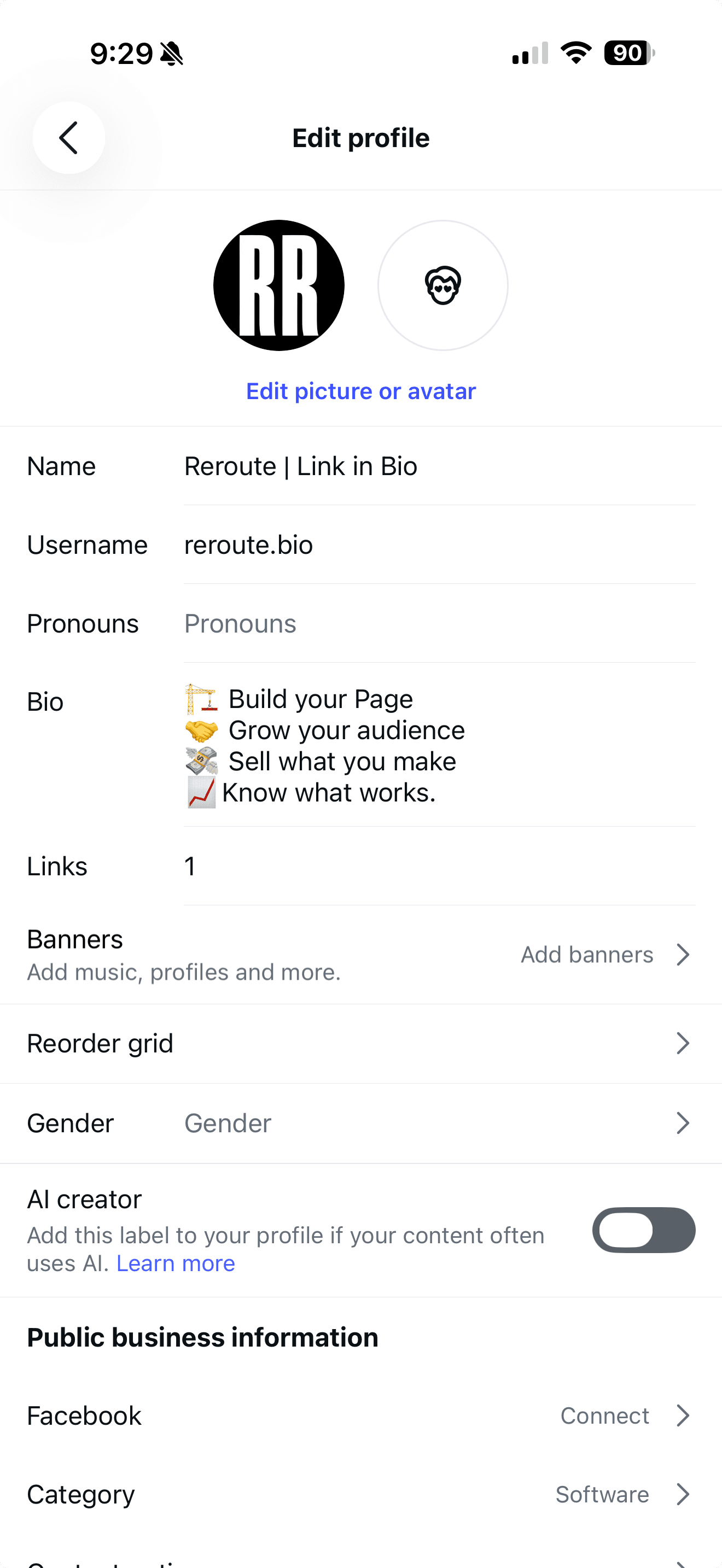
- Open your Instagram profile, choose Edit profile, then open Links.
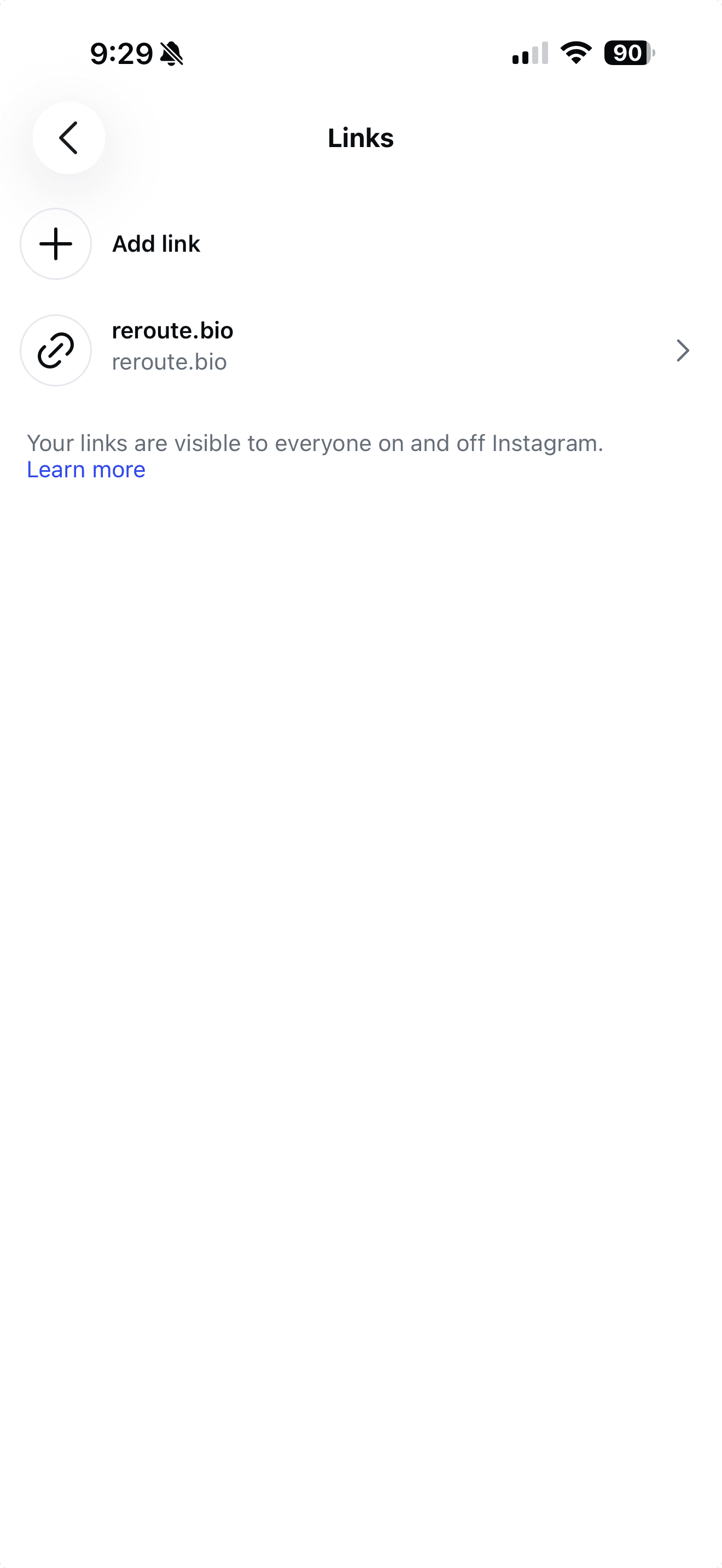
- Choose Add link.
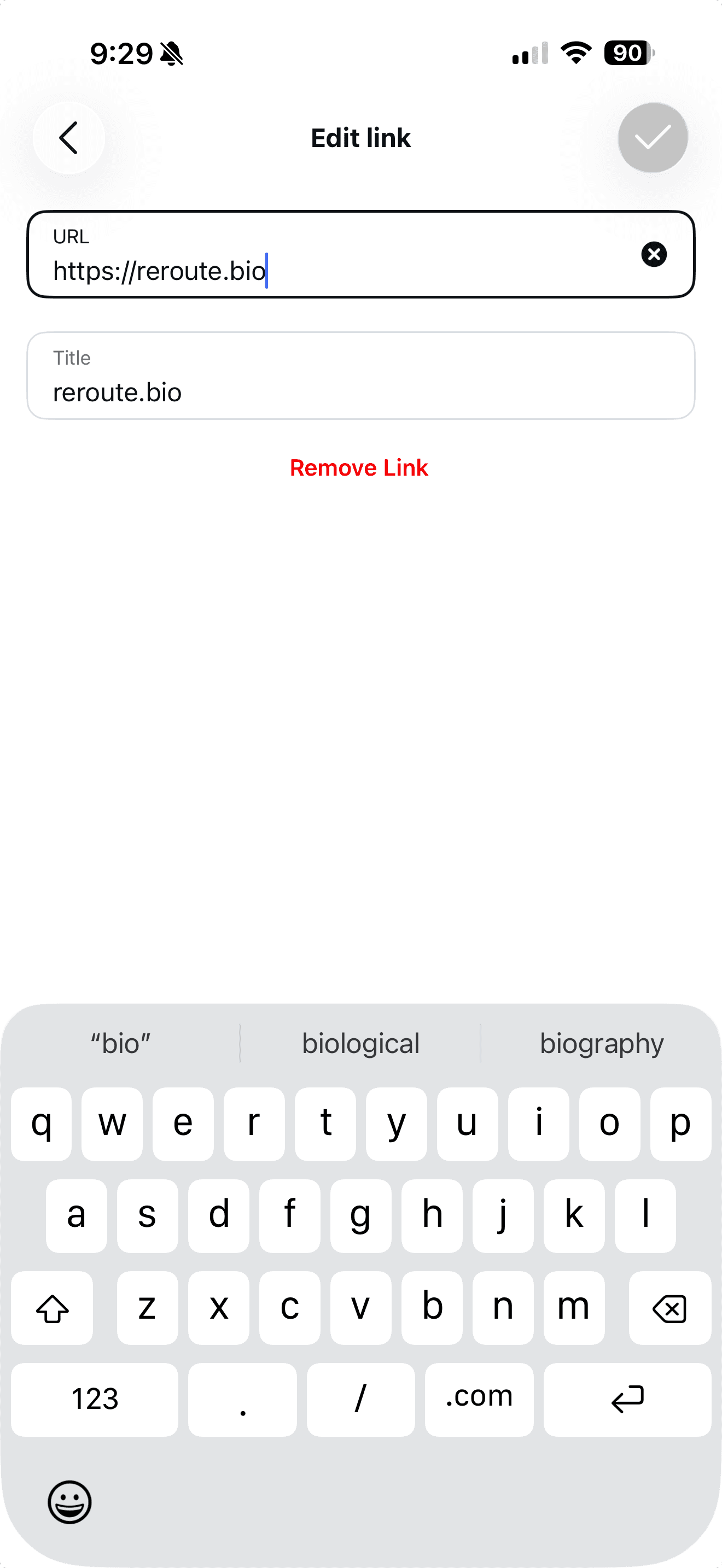
- Paste the complete address into URL, write a useful Title, then use the checkmark to save it.
- Step 1: Open Links
- Step 2: Add link
- Step 3: Add URL and title
Instagram supports multiple profile links in the current app. These screens do not state a maximum, so this guide avoids promising one.
Before moving on, open your public profile and tap the new link. Complete the form, booking, download, or checkout at the other end. A saved link is only useful when the whole route works.
Instagram treats profile links as public profile information . Anyone who can view the profile can see them.
Treat the bio link as your everyday route
The bio link is the dependable address attached to your profile. It serves people arriving from today’s post, an older Reel, a recommendation, or a search.
Think of it as the account’s everyday route. It should make sense on a quiet Tuesday as well as during a launch. A current campaign can take the first position, while the rest of the destination continues to help other profile visitors.
Its core purpose is simple: give profile interest one reliable next step while the content around it changes. One direct destination works when the account has one clear job. A focused page works when visitors need context or a few relevant choices. The link-in-bio planning guide helps you decide what that page should contain and which action deserves the first screen.
If you share the same destination on another platform, the guide to adding a link to your TikTok bio explains TikTok’s different follower requirements and Business account rules.
Choose where the tap should go
Start with one question: what should someone be able to do next?
Use the simplest route that completes that job. A direct link is often the right choice.
One direct link
Send them straight there
Use this when everyone needs the same current action and the destination already explains itself.
Example: Book a project call
Check: Completed booking
Instagram links
Offer a few clear choices
Use this for a small set of stable destinations that make sense without another page.
Example: Shop, newsletter, contact
Check: Result inside each destination
Focused Reroute page
Add context before the action
Use this when people need proof, an explanation, a form, or a few related paths before choosing.
Example: Free guide plus recent work
Check: page view, Block click or capture, then the final result
Comment-to-DM
Deliver one post's promise
Use this when a post offers one specific resource and the person asks for it in the comments.
Example: “Comment GUIDE and I’ll send it”
Check: DM delivered, link clicked, then the final result
Give people a reason to tap
A visible link does not create its own reason to click. “Link in bio” gives the location. The words before it need to explain what is waiting and why it is useful now.
Pair that prompt with a link title that confirms the destination.
| Profile prompt | Link title |
|---|---|
| Get the 12-point launch checklist from the link in my bio. | Get the launch checklist |
| Booking two September projects. See availability in my bio. | Book a project call |
| See the preset pack used in this Reel. Find it through my bio. | Shop the preset pack |
| Get one practical studio note each Sunday. Join through my bio. | Join the workshop list |
Keep the route consistent from one screen to the next:
- The post, Reel, Story, or profile creates a specific reason to continue.
- The link title confirms what the person will open.
- The destination shows the promised item or action near the top.
- The final button describes the action, such as Get the checklist or Book a call.
The profile has one conversion job: turn relevant curiosity into a tap. The destination has another: help that visitor complete the promised action. Measure those separately so a high number of taps cannot hide a confusing page, form, or checkout.
Specific link text also helps people distinguish one destination from another. W3C guidance recommends link text that identifies its purpose . “Get the checklist” carries more information than “Click here”.
Make the destination keep the promise
If the profile says “Free launch checklist below”, the next screen should show the launch checklist near the top. Do not make the visitor search through a general homepage to find it.
Check the destination as carefully as the Instagram setup. Google’s page-experience guidance asks whether a page works well on mobile, keeps its main content clear, uses a secure connection, and avoids interruptions that get in the visitor’s way. Those are useful checks when the visit begins inside Instagram too.
Before you paste the link
Decide what should happen after the tap.
Put that action or item near the top of the destination.
Reuse the language from the profile title and prompt.
Remove choices that compete with the primary job.
Test the complete route inside Instagram’s mobile browser.
Name the system that records the final signup, booking, or purchase.
The last item matters because a tap and a result are different events. A profile can send people to the right place while the destination still fails to explain the offer or complete the action.
Use a focused page when people need context
A focused page is useful when the destination needs more than a bare link. You might need to:
- show a preview before offering a download;
- explain a service before opening an enquiry form;
- collect an email before delivering a free resource;
- keep a current offer beside a few useful alternatives; or
- give one stable profile URL a destination you can update later.
In  Reroute, a page is an ordered set of Blocks. Put the promised action first, after enough identity and context to make it understandable. The full page planning guide includes a worksheet, worked page plans, mobile checks, and measurement advice.
A page adds another screen. It should earn that screen by helping the visitor understand or act. If a direct booking page already completes the job, use the booking page.
Use comment-to-DM for a promise made by one post
Suppose a Reel demonstrates a colour preset. The caption says, “Comment PRESET and I’ll send you the pack.” That promise belongs to the post, so the useful route can begin with the comment and continue in a private message.
The profile link serves everyone who visits the account. The Automation serves people responding to that particular post. Keeping those jobs separate makes both routes easier to understand and measure.
The complete comment-to-DM guide explains the professional-account requirement, Meta’s private-reply limits, keyword matching, message writing, testing, and activity reporting.
Share the link where the interest happens
The profile is the always-on route. Stories and messages can carry a useful link closer to the moment that created the interest.
| Route | Best used for | What the person does |
|---|---|---|
| Profile link | Everyday profile visits and stable destinations | Opens the named link from your profile. |
| Story link sticker | A timely release, event, offer, or update | Taps the sticker and goes directly to the website. |
| Comment-to-DM | One post promising one specific resource or offer | Comments the keyword, then opens the link sent privately. |
| One-to-one message | A person who has already asked in conversation | Opens the exact link you send in the chat. |
Instagram’s link sticker gives a Story its own tappable destination. Use it when the Story and destination belong together, rather than asking someone to leave the Story, visit your profile, and work out which link you meant.
For a post-specific promise, the Instagram auto-reply guide shows how to deliver the link after someone comments. In an existing conversation, send the exact destination directly. Instagram says a message to someone who does not follow you may arrive as a message request , depending on their settings.
Each route can lead to the same page, checkout, form, or booking calendar. Give the route a distinct campaign parameter when you need to compare it with the profile link. Then you can see which placement produced the visit and whether either route produced the final result.
Measure the route in stages
Do not call every tap a conversion. Follow the route and name each event plainly.
Instagram Insights is available to creator and business accounts and includes measures such as views, reach, and interactions. Meta also says the professional dashboard is available in the mobile app for professional accounts. Labels and profile-link metrics can vary, so check what your own account exposes rather than assuming every stage is available there.
| Stage | Where to look | What it tells you |
|---|---|---|
| Profile visit and link tap | Instagram, where available | Someone chose to leave the profile through that link. |
| page view | Reroute Insights | The destination page opened. |
| Block click or capture | Reroute Insights | Someone chose a page action or submitted a form. |
| DM delivered or link click | Automation activity | A post-specific message arrived or its link was opened. |
| Signup, booking or order | Your form, scheduler, store or checkout | The promised outcome was completed. |
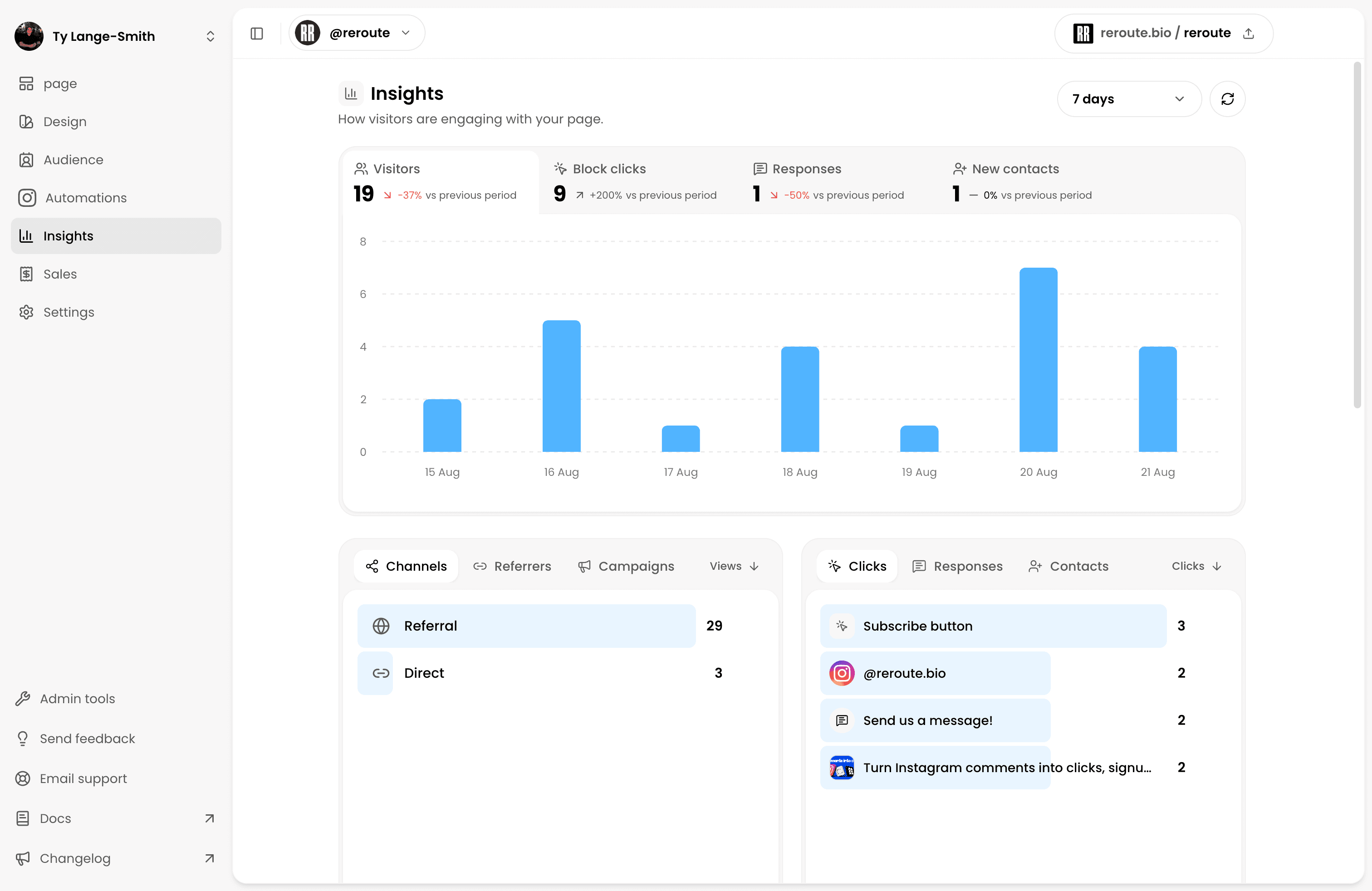
The final system owns the final result. A page view is not a booking. A link click is not a purchase. If the destination lives outside Reroute, check that service for the completed action.
For a deeper explanation of visitor anonymity, campaign tags, and what to change when views do not become action, read the guide to what Instagram bio-link analytics can actually show.
For external links, campaign parameters can help analytics tools distinguish traffic from an Instagram profile. Google documents how custom campaign URLs populate campaign dimensions . Use readable values and keep a record of the naming convention you chose.
Fix an Instagram bio link that does not work
Work through the route from the profile outward.
| Problem | Check |
|---|---|
| The text in the Bio is not clickable | Add the destination under Edit profile → Links. |
| Instagram will not save the URL | Paste the complete address, including https://, then use the checkmark to confirm. |
| The old link still appears | Reopen Links, confirm the saved destination, then refresh the public profile. |
| The link works for you but not others | Test from another account or a logged-out browser. |
| Instagram opens a broken page | Check the destination itself, including redirects, forms, downloads, and checkout. |
| People tap but do not finish | Compare the profile promise with the first screen and remove avoidable choices. |
When testing, use the public profile rather than relying on the editing screen. Complete the final action as a visitor would.